Joying CarPlay Head Unit in the Honda S2000 (Keeping the Center Vents)
A Joying Android head unit with real buttons in the AP2 S2000, with the center vents kept, plus a full settings walkthrough.
Full video (8 min): Retaining Center Vents S2000 Carplay Head unit Install / Overview | 8.9 Inch display JOYING
Get the parts
- Joying head unit (Amazon search: "Joying 8.8")Buy ↗
- Stereo wire harness for Honda S2000 2000–2004 (AP1)Generic pickBuy ↗
- Honda S2000 AP1 radio cover / dash kitGeneric pickSearch on Amazon ↗
White buttons are from the video description. “Generic pick” links are my suggestions, not from the video; confirm fitment and part number before buying. Some are affiliate links, so I may earn a commission at no extra cost to you.
Overview
John keeps the S2000's center vents and adds GPS, CarPlay and Android Auto with a Joying head unit. He chose it because it has physical buttons, which matters on the S2000 where the factory buttons sometimes don't work properly. The custom touch: an AP1 radio cover with the door removed for a cleaner look.
Vehicle & fitment
- Product
- Joying Android head unit (8.9" per the video title, 8.8" in the thumbnail and Amazon search): Snapdragon 8-core (610), 4GB/64GB, 720p, wireless and wired CarPlay/Android Auto
- Shown on
- Honda S2000 (AP2)
- Honda S2000 (shown in an AP2)
- Requires a wiring harness and brackets for your car
Always confirm fitment for your exact year and trim with the seller before buying.
Tools & parts
Tools
- Basic hand tools for the brackets
Parts
- Joying head unit
- Vehicle wiring harness
- Mounting brackets
- Optional: AP1 radio cover with the door removed
Step by step
- 1
Match the harness▶ 0:37
After you buy your harness, match it up with the colors and labels, then plug it straight into the back of the unit. "Can't really go too much in the install besides just matching up the colors."
- 2
Mount with the brackets▶ 0:48
Attach the brackets and fit the unit in the dash.
- 3
Custom finish▶ 1:11
Fit an AP1 radio cover with the door taken off. It hides everything behind it and looks much cleaner.
- 4
Set up the UI and shortcuts▶ 2:00
Select modes and hold a button to assign a shortcut (John used Sound Effects). Phone Link is the app for wired/wireless CarPlay and Android Auto.
- 5
Bluetooth, nav and beeps▶ 2:48
Name the Bluetooth device (John used "S2000 AP2"). Built-in nav exists, but you'll mostly use phone nav. Key beeps can be switched off.
- 6
Microphone and calls▶ 3:28
Call quality is okay, not great. It's a convertible, so expect some noise.
- 7
Display and dimming▶ 3:53
Set brightness, night mode by light control or by time, and switch between UI1 and UI2 (UI2 looks more like an Android tablet).
- 8
Car settings▶ 4:54
Options include headlight detection, handbrake, keyed power, low-voltage protection and floating buttons. Key learning programs steering or panel keys.
- 9
Performance and lights▶ 6:09
Leave CPU performance on default to keep it cooler and more reliable. Button color lights can be always on, off or auto (RGB cycle).
- 10
Boot logo▶ 7:35
In factory settings you can change the model and upload your own boot logo.
Tip: John reads out a factory-settings code in the video. It's unclear in the audio, so check the Joying manual for it.
Wiring notes
- Harness matched by wire color and label, then plugged straight into the unit.
- No reverse or front camera was installed, but the unit supports them.
Get the parts
- Joying head unit (Amazon search: "Joying 8.8")Buy ↗
- Stereo wire harness for Honda S2000 2000–2004 (AP1)Generic pickBuy ↗
- Honda S2000 AP1 radio cover / dash kitGeneric pickSearch on Amazon ↗
White buttons are from the video description. “Generic pick” links are my suggestions, not from the video; confirm fitment and part number before buying. Some are affiliate links, so I may earn a commission at no extra cost to you.
John's Honda S2000
More photos →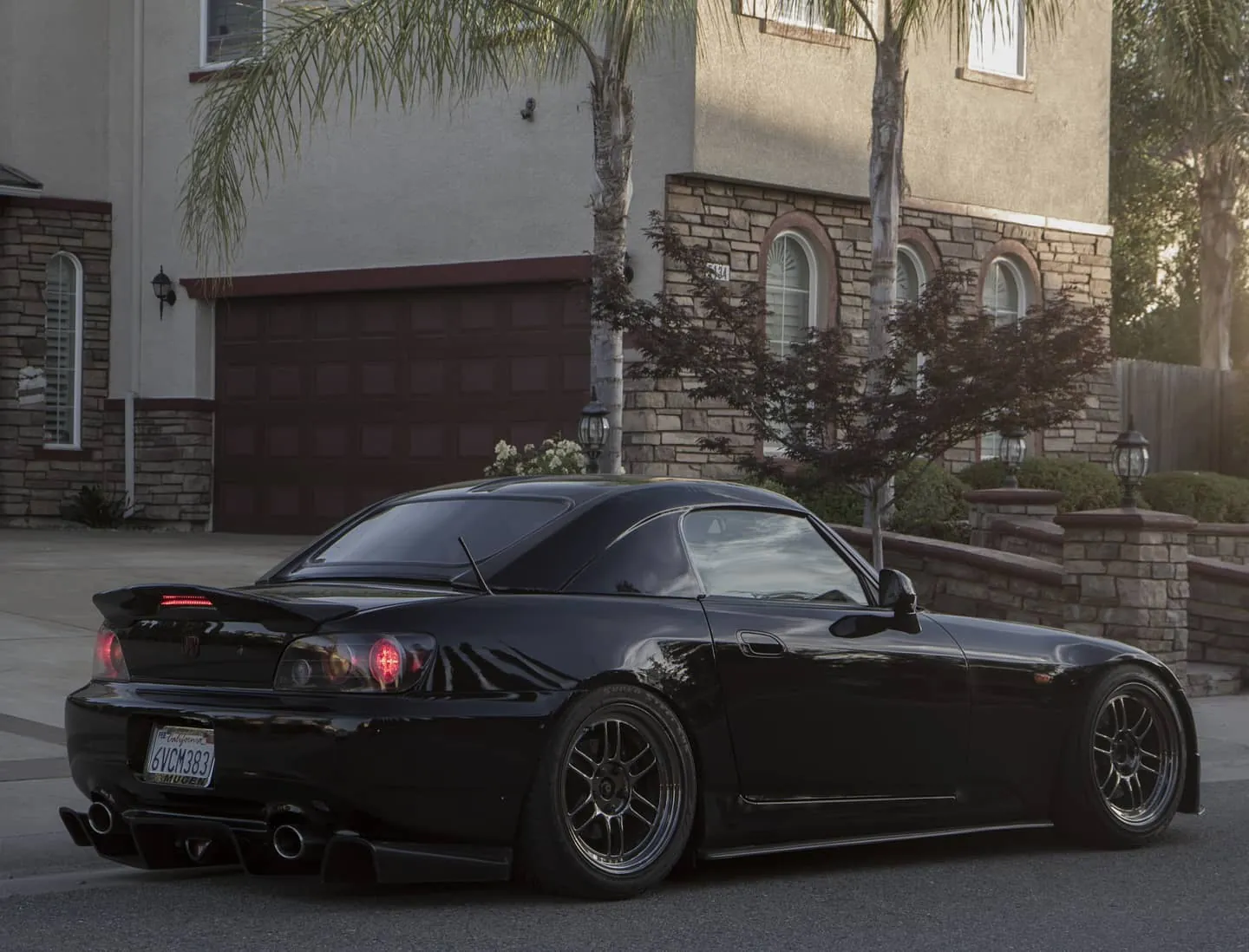
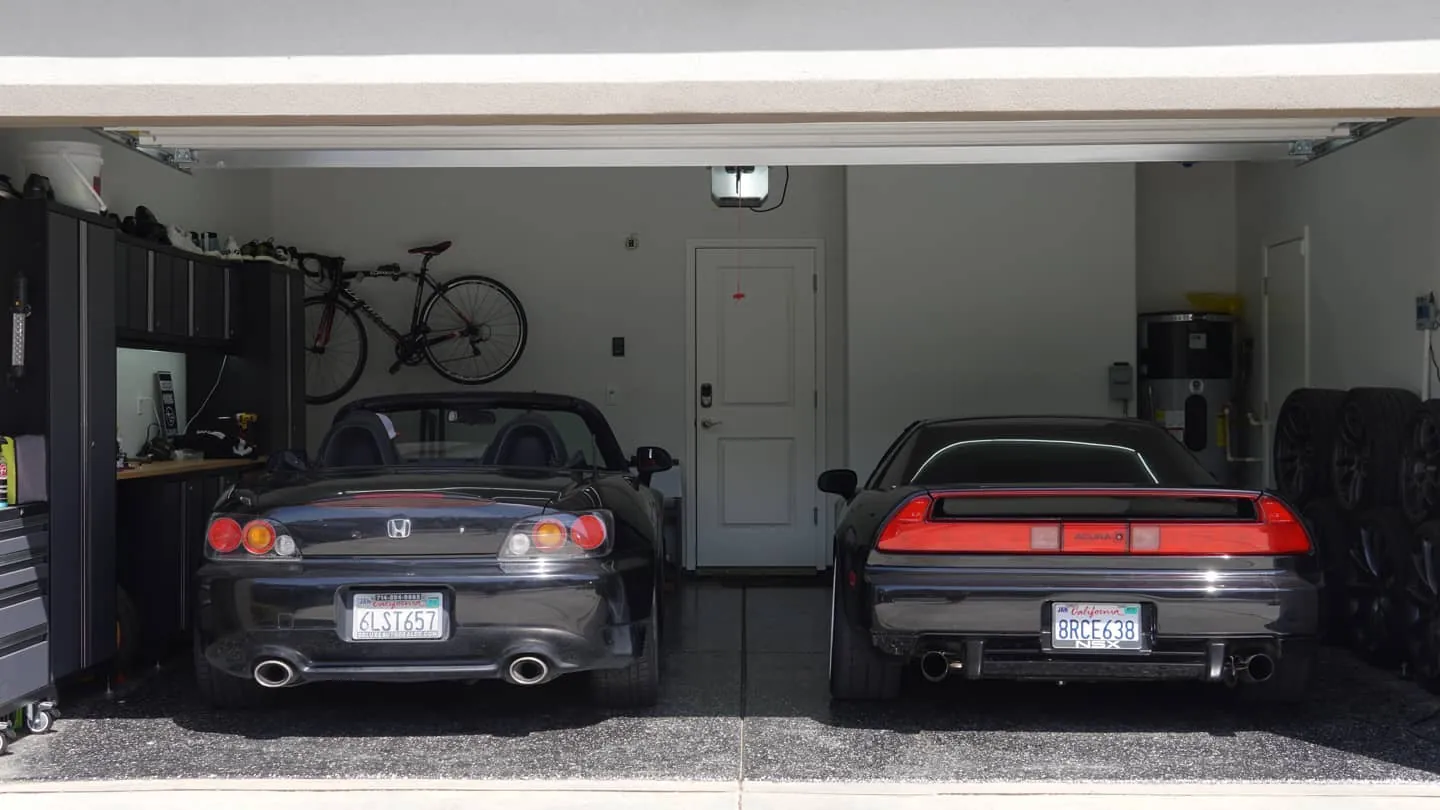
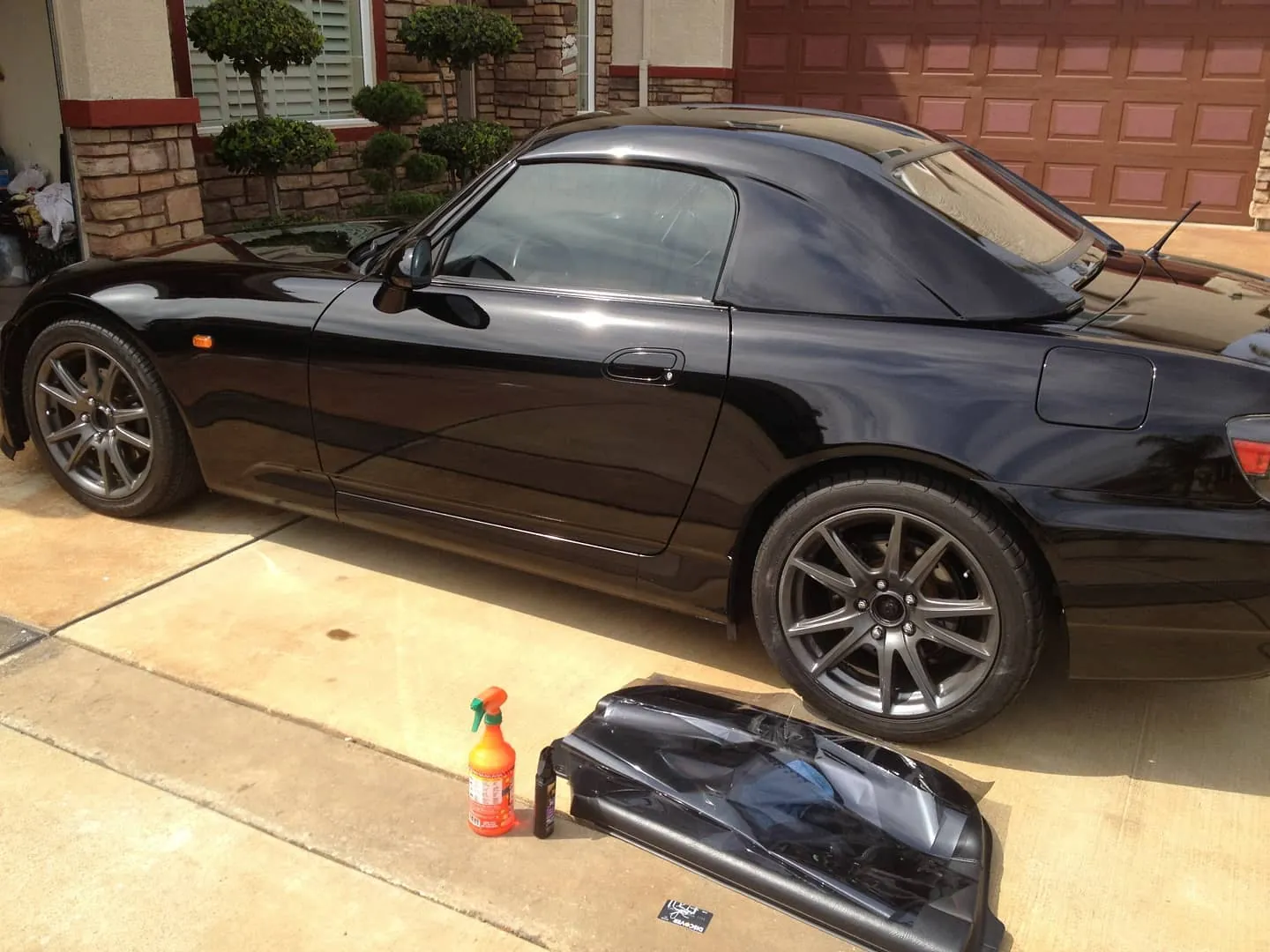
Photos from @ngooyen on Instagram. Follow for more.
Full transcript
Show the full transcript (150 lines) +
0:18All right, so we are in the Honda S2000.
0:21Now already have an aftermarket head unit in here
0:24if you were interested in this one
0:26which is a larger one, but there's no button.
0:28So it's kind of a pain the butt to adjust audio.
0:32Where I have a link in my video.
0:35You can check in the description as well.
0:37All right, so after you buy your harness
0:41and you match it up with the colors
0:43and the labels right here
0:46you can just plug it straight into the back.
0:48We have the brackets right here.
0:53Can't really go too much in the install besides
0:55just matching up the colors.
0:57And yeah, you just
1:00I'm gonna show you the finished product
1:01and how it would look and you can go from there.
1:06All right, so after everything is installed
1:09it looks something like this.
1:11Now what we did here is a little custom mod.
1:14We have the an AP1 radio cover and we took the door off.
1:20That way it just looks a lot more.
1:24Oh, you don't see all that stuff in the back.
1:27Looks a lot cleaner this way and 10 out of 10.
1:31Got the GPS, got the audio, it's amazing.
1:35Now the reason why we really like the Joying
1:37is it actually has some buttons
1:40which is nice for the S2000
1:42because those buttons sometimes they don't work properly.
1:47But yeah, if you guys were interested in the Joying
1:52I'm gonna just go over some of the UI stuff real quick.
2:00Here is the UI of the Joying head unit.
2:04Sorry to ship not in the way
2:05let me try to get you in a pretty decent position.
2:08You can select your modes right here.
2:12So I have it like this.
2:14Hold the button down if you want to do a shortcut.
2:17So let's say if you wanted to do OX, sound effects.
2:23Just, I'm gonna put, I guess a useful one
2:28would be maybe sound effects.
2:31So bam, you have it right there.
2:34And to go to the app store or the app menu right here
2:39you just go here.
2:40And phone link is pretty much what you wanted to use
2:42for Android Auto and Apple CarPlay.
2:46It is both wireless and wired.
2:48Wi-Fi networks, Bluetooth right there.
2:52We named ours S2000 AP2.
2:56Hopefully my finger doesn't mess up the focus.
2:59I'm gonna use the navigation stuff.
3:01Now this is, it does have built-in nav
3:03but you're gonna be using your phone nav
3:06generally for the most part in at least America.
3:09You can have the beeps.
3:10So right now we have the beeps right here.
3:12Just so a little bit more tactile feedback.
3:15You can turn off the beep so when you touch the screen
3:17it doesn't make a beep sound.
3:19You just hit this and now it doesn't do any beep noise.
3:22Up to you, I'm gonna keep it on just because that's the default.
3:26Some other stuff might gain and stuff.
3:28So your microphone's right here.
3:32We can test phone quality.
3:34Honestly phone quality is okay, not that great.
3:39But this car is convertible so what do you expect?
3:43Reverse camera, we did not do it any
3:45kind of reverse camera, aux again.
3:47We didn't do any kind of front camera, any of that stuff
3:50but you can do all that augment reality stuff.
3:53This system, they light brightness.
3:57You can change it like that, night times.
3:59Then we have it on the small light control
4:01but you can also do it based off of time control.
4:05So that's really cool.
4:08They mode.
4:10There's also UIs you can choose from.
4:12So this is UI1.
4:13Let's see how UI2 looks like.
4:16Ooh, look at that, it's a different UI.
4:20So UI2 looks more like an Android tablet or a...
4:25And you can have it like this.
4:27You like, that's one or the other one too.
4:30Okay, so this one looks more Android-y
4:32and then we have that CarPlay right there
4:35which is what we want.
4:37But, wow, the UIs completely changed.
4:43I, the center there.
4:54So there's that, there's headlight detection
4:57handbrake, any keyed power, low voltage protection.
5:06After the battery is lower than this voltage
5:08the parking monitors.
5:10We don't have any parking monitors since there
5:11so that wouldn't do anything.
5:13Floating buttons, that's the one where you can have a key
5:16but we have these dedicated buttons out here
5:18so we don't do that.
5:19The key to learn is how you do the
5:23steering controls or the, or you can also adjust these.
5:26These ones are actually called the key studies
5:28not the panel keys, so just some food for thought.
5:45Oh, and let's see.
5:47Gestures is, you can do swipes for like
5:52if you want to go back, these two things are swipes.
5:55All that.
5:57Beeps, again, we were there earlier
5:59and that's how you adjust your audio settings.
6:04But yeah, we're doing the themes
6:06auto-sync thing at the time.
6:09Very cool, very cool, CPU performance.
6:13We're not that default.
6:15You generally don't need that much CPU performance.
6:17Try to keep it cooler, try to keep it more liable
6:21than trying to like overclock it or anything
6:23that's important, color lights.
6:28You can keep it alWaze on, normally off, or auto.
6:34Let's just do auto.
6:38Or if you want to see it, I can show you how it looks
6:40like right there.
6:42So you can do your colors.
6:45S2000s, like yellowy orange red stuff
6:48so you can see some like that.
6:50Auto, I believe, is just an RGB
6:52and it just kind of goes through the colors.
6:54And then if you do auto and you can change
6:56the speed of the RAM.
7:07All right, here's the CPU, Snapdragon.
7:12Crazy, right?
7:12Snapdragon 8 core, 610 Pokemon Go
7:17on this bad boy, on this bad boy.
7:204GB RAM, storage is 64GB, a lot of storage.
7:25Almost more than my iPhone.
7:26It's Team Pro, it's kind of sad.
7:29Resolution is 720.
7:32And yeah, factories.
7:35If you want to go to the factory settings
7:36it's going to be 4.8.
7:38And then you can go to change the models
7:40and set your own boot logo.
7:42Right now, it's set to Joying
7:45but you can go into the settings
7:48upload your own photo.
7:51That's something you want to do.
7:53But yeah, that is the Joying head unit.
7:58It looks really different on the ZUI 2.
8:01But thank you guys for watching
8:03if you guys were interested
8:04I'll leave a link down below.
8:06You can click on it and get this awesome head unit.
8:10Talk to you guys in the next, catch you guys in the next one
8:12see you.
Machine-transcribed from the full-length video and lightly cleaned (product names fixed). Watch the video for exact wording.