Android Auto on an Android Head Unit with EasyConnection (USB)
On a PX5 Android head unit in his WRX, John gets Android Auto running for free: install EasyConnection on the unit and the phone, plug in by USB, mirror the screen, and enable USB debugging on the phone.
Full video (5 min): Android Auto and Apple Car play | Android Head Unit · John's YouTube channel
Get the parts
- Axxess AXSWCH-T28 harness with RCA (backup camera + AUX, Amazon link from the description)Buy ↗
- 12V to 6V converter for a stock OEM reverse camera (Amazon link from the description)Buy ↗
- Dasaita CarPlay / Android Auto USB dongle (AliExpress link from the description)Buy ↗
- Seicane WRX 2014–2016 Android head unit shown (Seicane link from the description)Buy ↗
As an Amazon Associate I earn from qualifying purchases. Some links are affiliate links.
Yes — you can install This kit on the Shown on a PX5 Android 8.0 (Oreo) head unit with a Samsung Note 8 over USB-C with a 5 min DIY job. On a PX5 Android head unit in his WRX, John gets Android Auto running for free: install EasyConnection on the unit and the phone, plug in by USB, mirror.
Overview
Software like zBox and EasyConnection is a free way to run Android Auto on an aftermarket Android head unit. John's WRX runs a PX5 Android 8.0 head unit, and his phone is a Samsung Note 8. Plug the phone in by USB, open EasyConnection on the head unit, install the matching EasyConnection app on the phone, and choose USB: the whole phone screen is mirrored, touch works, and you can launch Android Auto from there. He calls it a crude but free way to do it. The one setting you need is USB debugging on the phone. Wireless mirroring and iPhone setups were saved for later videos. The description links the Seicane WRX unit he was running, a CarPlay / Android Auto adapter if you'd rather buy one, and two harnesses for a backup camera.
Vehicle & fitment
- Product
- EasyConnection screen-mirroring app (free) on a Seicane PX5 Android head unit; the description also links a CarPlay / Android Auto USB adapter and backup-camera harnesses
- Shown on
- John's 2015 Subaru WRX with a Seicane PX5 Android 8.0 head unit, and a Samsung Galaxy Note 8
- Shown on a PX5 Android 8.0 (Oreo) head unit with a Samsung Note 8 over USB-C
- EasyConnection is free; it needs the app on both the head unit and the phone, and USB debugging turned on in the phone's developer options
- Wireless and iPhone setups were left for later videos
Always confirm fitment for your exact year and trim with the seller before buying.
Tools & parts
Tools
Parts
- Android head unit (PX5 in this video)
- USB cable (USB-C for the Note 8)
- EasyConnection app on the head unit and the phone
Video chapters
- 0:00Android head unit overview
- 0:42Setting up EasyConnection
- 1:57Using Android Auto
- 3:07Voice commands
- 4:16Enabling USB debugging
Step by step
- 1
The setup▶ 0:00
A PX5 Android 8.0 (Oreo) head unit in the WRX and a Samsung Note 8. This video focuses on Android Auto.
- 2
zBox or EasyConnection▶ 0:43
You don't have to buy anything. There are two apps you could use, zBox or EasyConnection; for a free option he goes with EasyConnection.
- 3
Plug in and open EasyConnection▶ 0:57
Plug the phone into the head unit's USB (USB-C here; it starts charging). Open EasyConnection on the head unit; it asks you to install the EasyConnection app on your phone too.
- 4
Choose USB and mirror▶ 1:41
Select USB and the phone screen is mirrored. Touch works, so you can open apps, and launch Android Auto from the mirrored screen. He calls it a crude but free way to run Android Auto.
- 5
Exiting and wireless▶ 2:41
Backing out closes the session. A Wi-Fi option exists, but he didn't cover it here, and an iPhone setup was planned for a later video.
- 6
Turn on USB debugging▶ 4:33
The only thing he had to change was USB debugging on the phone (in developer options).
Wiring notes
- No dash wiring for Android Auto: a USB cable from the phone to the head unit plus the EasyConnection app.
- If you're adding a backup camera, the description lists an Axxess harness with RCA for the camera and AUX, and a 12V-to-6V converter for a stock OEM reverse camera.
Get the parts
- Axxess AXSWCH-T28 harness with RCA (backup camera + AUX, Amazon link from the description)Buy ↗
- 12V to 6V converter for a stock OEM reverse camera (Amazon link from the description)Buy ↗
- Dasaita CarPlay / Android Auto USB dongle (AliExpress link from the description)Buy ↗
- Seicane WRX 2014–2016 Android head unit shown (Seicane link from the description)Buy ↗
As an Amazon Associate I earn from qualifying purchases. Some links are affiliate links.
FAQ
What vehicle does this head unit fit?
It is shown for the Shown on a PX5 Android 8.0 (Oreo) head unit with a Samsung Note 8 over USB-C. EasyConnection is free; it needs the app on both the head unit and the phone, and USB debugging turned on in the phone's developer options Always confirm your exact year, trim and factory audio with the seller.
How long does the install take?
John's full video is 5 min. Plan on that much time for a careful DIY install, plus extra if you are new to dash work.
What tools do I need?
Basic hand tools and a plastic trim tool cover most of this install; see the Tools section for the full list.
Does it support wireless CarPlay or Android Auto?
Check the product listing for wired vs wireless CarPlay / Android Auto before you buy; John shows what worked in the video.
Where do I get the parts?
Use the buy links on this page for the unit and any harnesses John used. Some links are affiliate links.
Is this beginner-friendly?
The guide breaks the job into 6 steps with timestamps into the video. If you can remove trim panels carefully, you can follow along.
John's Subaru WRX
More photos →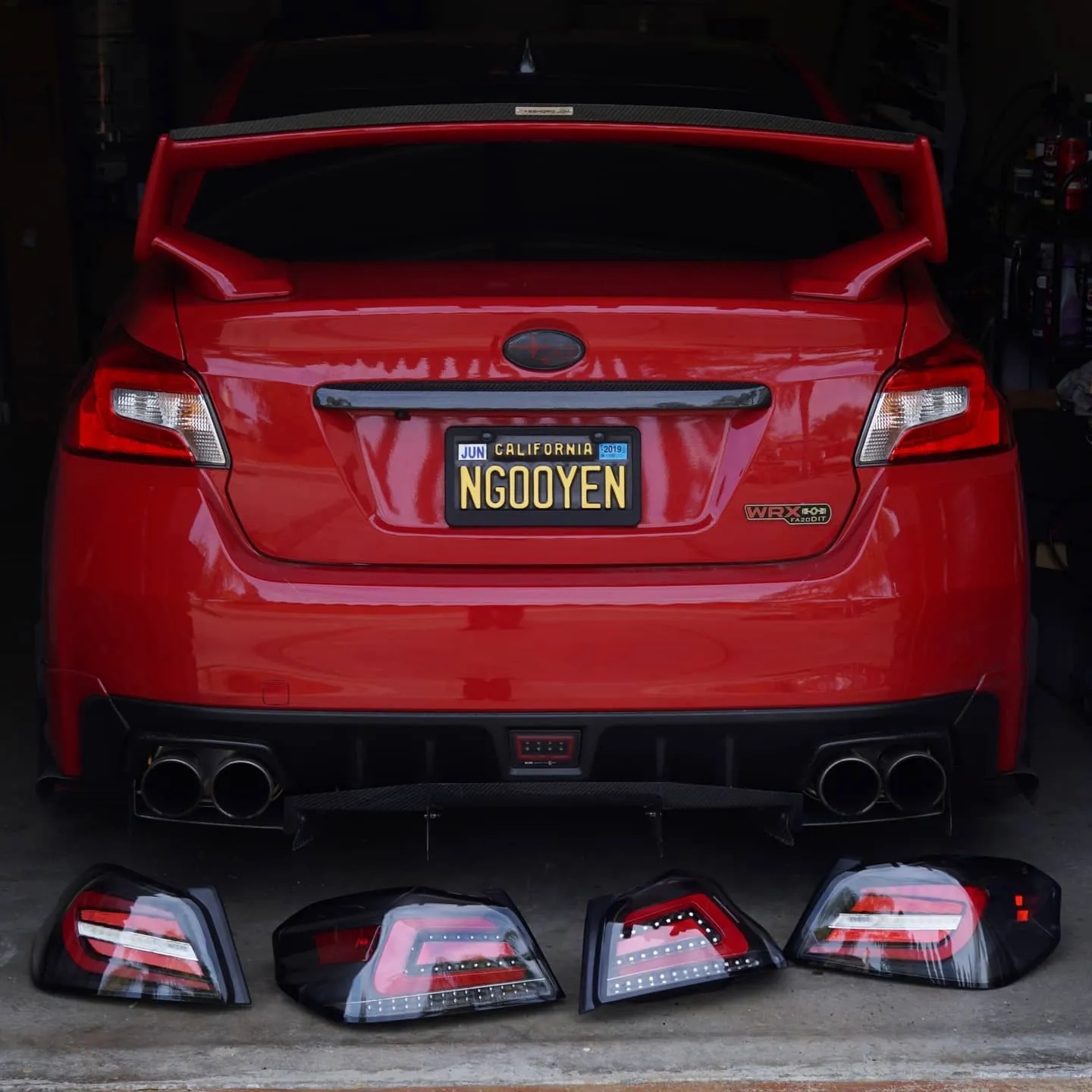
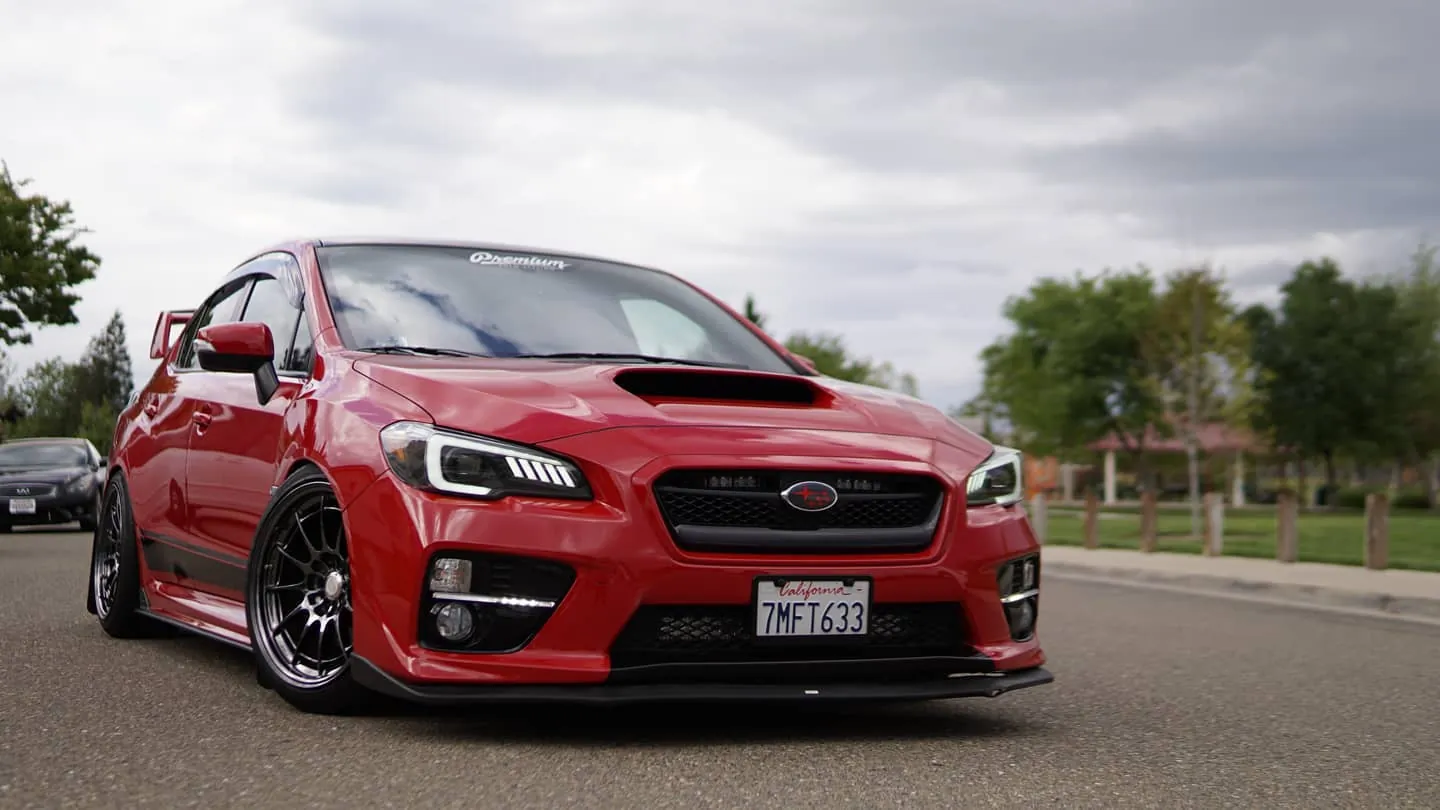
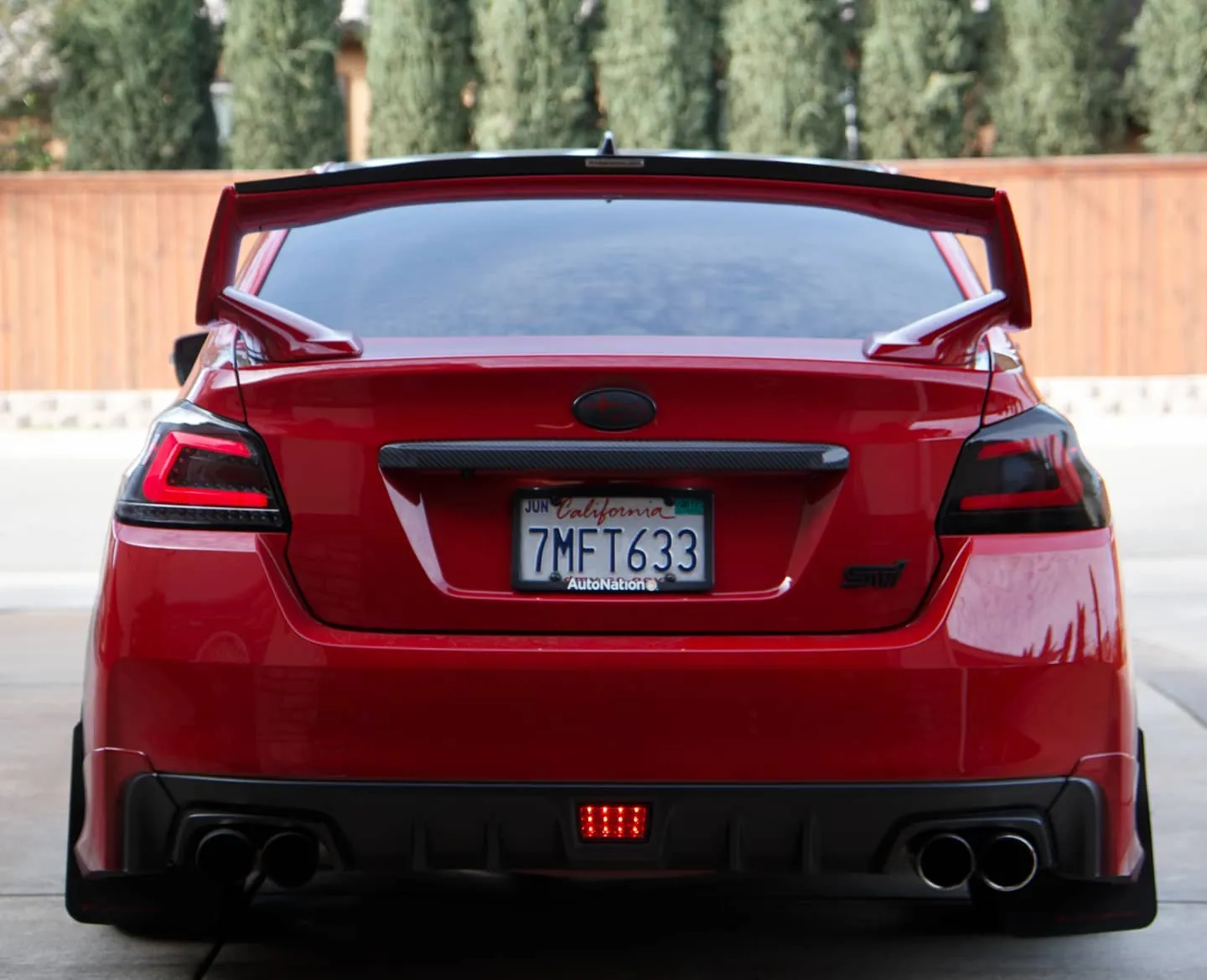
Photos from @ngooyen on Instagram. Follow for more.
Full transcript
Show the full transcript (64 lines) +
0:00Today we're, gonna take a look at the android head unit of course and
0:04What's the deal with android auto and apple car play so let's dive straight into it
0:12For this video specifically we're gonna work mostly on android auto
0:18All right so i on my android head you know right here and then i have my phone the samsung note 8
0:23Let's look at the firmware of B of both you know
0:26So i'm running android Oreo with the samsung experience version 9 about machine
0:32of the the android audio as well on this unit too
0:36and it's written the PX5 and how I get android auto working on this particular model
0:43now you you really don't have to buy anything it's pretty much
0:47There are two software software you could use you can use zbox or you can use easy connection
0:53But for the sake of free let's just go to easy..
0:57Now I have a USB
0:59This is a USB-C and i'm just gonna plug it straight to my phone
1:06It's charging
1:08And the next thing I'm gonna do is open the app easy, easy connection
1:12So it's telling me that it wants me to open you have to download an app on your phone too
1:18So it's called easy connection.
1:20And then
1:25So once you have easy easy it's kind like the software they use to talk
1:29Now this is the free version basically the free version as in the free alternative
1:35where you do have to download the proprietary app to get it loaded
1:39But it's free
1:41And of course I'm connected through USB
1:45So we hit USB
1:49And then the screen is mirrored
1:51Attention blah blah, it's fine.
1:57Now the way I get Andrew on this method is
2:01Okay the whole screen is mirrored so you can go on my Instagram
2:05Follow me at JK.wrx
2:07You should do that
2:09But the thing is you can auto from here
2:15And the touch screen and everything like that works on this too
2:19So right
2:23Call me recently.
2:25And it just mirrors the screen
2:27The screen.
2:31Settings.
2:33So if you are a kind of like crude way to run Android auto this is definitely a really
2:37way I just connected through USB
2:39And I just pretty much started going
2:41And if you head back on the
2:43And if you head back on this
2:45It's going to close the thing
2:47And I just and I just wanted to show you
2:49That you can do it through Android USB
2:51Through wifi
2:53This is going to be a phone
2:55But we're not going to touch that on this video today
2:57Later on the week I'm going to do
2:59Android head unit
3:01With the iPhone
3:03So
4:09So
4:25So
4:33And the only thing I had to do was
4:37Right there.
4:39It says USB debugging.
4:41So that's
4:47So
4:55I'm going to show you another setup very soon
4:57But I just want to show you the most basic
4:59The the easiest way without the easy way
5:01Without hunting through the internet
5:03It's a a
Machine-transcribed from the full-length video and lightly cleaned (product names fixed). Watch the video for exact wording.
Next step