Wireless Android Auto on an Android Head Unit: Full Zlink Setup Tutorial (Dasaita)
Update the head unit's Zlink app to 4.0.6 or newer, pair over Bluetooth, unlock Android Auto's developer settings to add wireless projection, connect once by USB, then switch on wireless Android Auto with battery saver off.
Full video (13 min): Android Auto Wireless For Android Head unit | Full In Depth Setup Tutorial · John's YouTube channel
Get the parts
- Universal Android head unit (Amazon)Buy ↗
- USB cable for the first wired connection: Generic pickGeneric pickSearch on Amazon ↗
- Dasaita Android head unit (AliExpress)Buy ↗
As an Amazon Associate I earn from qualifying purchases. Some links are affiliate links.
Yes — you can install Dasaita on the Head unit side: built-in Apple CarPlay / Android Auto via the Zlink app, version 4.0.6 or newer for wireless Android Auto with a 13 min DIY job. Update the head unit's Zlink app to 4.0.6 or newer, pair over Bluetooth, unlock Android Auto's developer settings to add wireless projection, connect once by.
Overview
John walks through getting Android Auto, wired and wireless, working on an Android head unit, here a Dasaita in his NSX. Android Auto puts your phone's apps (Spotify, Waze, maps, messages) on the car screen in a driver-friendly layout, and it needs your phone's data. On the head unit you need built-in CarPlay / Android Auto through Zlink, which most higher-end units use; wireless Android Auto needs Zlink version 4.0.6 or newer, which you can check under About. Start fresh: set the head unit's Bluetooth name and PIN, search, and pair from the phone. On the phone, open the Android Auto app, go to Settings and tap the version number repeatedly until it offers developer settings, then in the three-dot menu open Developer settings and turn on "Add wireless projection to settings", the step many people miss. Plug in by USB once, accept the permissions, and wired Android Auto is up. For wireless, unplug, go back to Android Auto settings and enable wireless Android Auto, making sure battery saver is off and Bluetooth is on. Restart the phone if it doesn't connect; it can be a little buggy. John rates wireless responsiveness about 7/10 versus 9/10 wired, but the convenience of walking up with the phone in your pocket is worth it.
Vehicle & fitment
- Product
- Wireless and wired Android Auto through the Zlink app on a Dasaita Android head unit, using Bluetooth plus Wi-Fi projection
- Shown on
- Any Android head unit with built-in CarPlay / Android Auto through Zlink (shown on John's Dasaita unit in his NSX)
- Head unit side: built-in Apple CarPlay / Android Auto via the Zlink app, version 4.0.6 or newer for wireless Android Auto
- Phone side: a reasonably recent Android phone with the Android Auto app and a data connection (John says even older Samsungs work on a newer Android version)
- Shown on a Dasaita unit; Amazon and AliExpress links in the description
Always confirm fitment for your exact year and trim with the seller before buying.
Tools & parts
Tools
- An Android phone with the Android Auto app and mobile data
- A USB cable for the first connection
Parts
- Head unit with Zlink 4.0.6 or newer
- Bluetooth pairing between the phone and the head unit
Video chapters
- 0:00Intro
- 0:28What is Android Auto
- 1:05Features
- 1:55Setup
- 3:20Version
- 5:35Android Auto
- 6:16Android Auto Settings
- 8:18Android Auto Wired
- 9:39Android Auto Wireless
- 10:56Conclusion
Step by step
- 1
What Android Auto does▶ 0:29
It mirrors your phone's apps (Spotify, Waze, maps, texts, scanner radio, VLC) onto the head unit in a car-friendly interface, with directions and messages popping up hands-free.
- 2
Phone requirements▶ 1:55
Most phones work, even older Samsungs on a newer Android version. You need a fast data connection because everything streams from the phone.
- 3
Head unit requirements▶ 2:40
The head unit needs built-in CarPlay / Android Auto. Most Dasaita units and many other brands use the Zlink app for this.
- 4
Check the Zlink version▶ 3:16
You need Zlink version 4.0.6 or newer for wireless Android Auto. Check under About and look for updates there. The four icons are wireless CarPlay, wired CarPlay, wired Android Auto and wireless Android Auto.
- 5
Pair Bluetooth▶ 4:22
On the head unit's Bluetooth settings, set the device name and PIN, then hit search. Delete any old pairing on the phone, pair a new device, and pick the head unit's name. It may ask for the PIN.
- 6
Unlock developer settings▶ 6:16
Open the Android Auto app on the phone, tap the menu, go to Settings, then tap the version number at the bottom repeatedly until it asks to enable developer settings. Hit OK.
- 7
Add wireless projection▶ 7:02
In the three-dot menu, open Developer settings and turn on "Add wireless projection to settings". This is the step a lot of people miss. You can also force night mode here.
- 8
Connect once by USB▶ 7:42
Turn the car on, plug the phone in with a USB cable, and allow the permissions (contacts, notifications and so on). Wired Android Auto now runs.
- 9
Turn on wireless▶ 8:39
Unplug, go back to Android Auto settings and enable wireless Android Auto.
Warning: Battery saver must be off and Bluetooth must be on, or wireless won't connect.
- 10
If it won't connect▶ 10:07
Restart the phone. It can be a little buggy, but the key is Bluetooth connected plus wireless projection enabled.
- 11
Wired vs wireless▶ 11:50
John rates wireless about 7/10 for responsiveness and wired about 9/10, but walking up with the phone in your pocket and having Android Auto ready is very convenient. iPhone users just pair Bluetooth and CarPlay connects.
Wiring notes
- No wiring: software setup on the head unit (Zlink) and phone (Android Auto app).
- One USB connection is needed for the first wired pairing.
Get the parts
- Universal Android head unit (Amazon)Buy ↗
- USB cable for the first wired connection: Generic pickGeneric pickSearch on Amazon ↗
- Dasaita Android head unit (AliExpress)Buy ↗
As an Amazon Associate I earn from qualifying purchases. Some links are affiliate links.
FAQ
What vehicle does this head unit fit?
It is shown for the Head unit side: built-in Apple CarPlay / Android Auto via the Zlink app, version 4.0.6 or newer for wireless Android Auto. Phone side: a reasonably recent Android phone with the Android Auto app and a data connection (John says even older Samsungs work on a newer Android version) Always confirm your exact year, trim and factory audio with the seller.
How long does the install take?
John's full video is 13 min. Plan on that much time for a careful DIY install, plus extra if you are new to dash work.
What tools do I need?
Tools called out in the guide: An Android phone with the Android Auto app and mobile data; A USB cable for the first connection.
Does it support wireless CarPlay or Android Auto?
Yes — wireless CarPlay / Android Auto is listed for this unit in the product copy John used.
Where do I get the parts?
Use the buy links on this page for the unit and any harnesses John used. Some links are affiliate links.
Is this beginner-friendly?
The guide breaks the job into 11 steps with timestamps into the video. If you can remove trim panels carefully, you can follow along.
John's Acura NSX
More photos →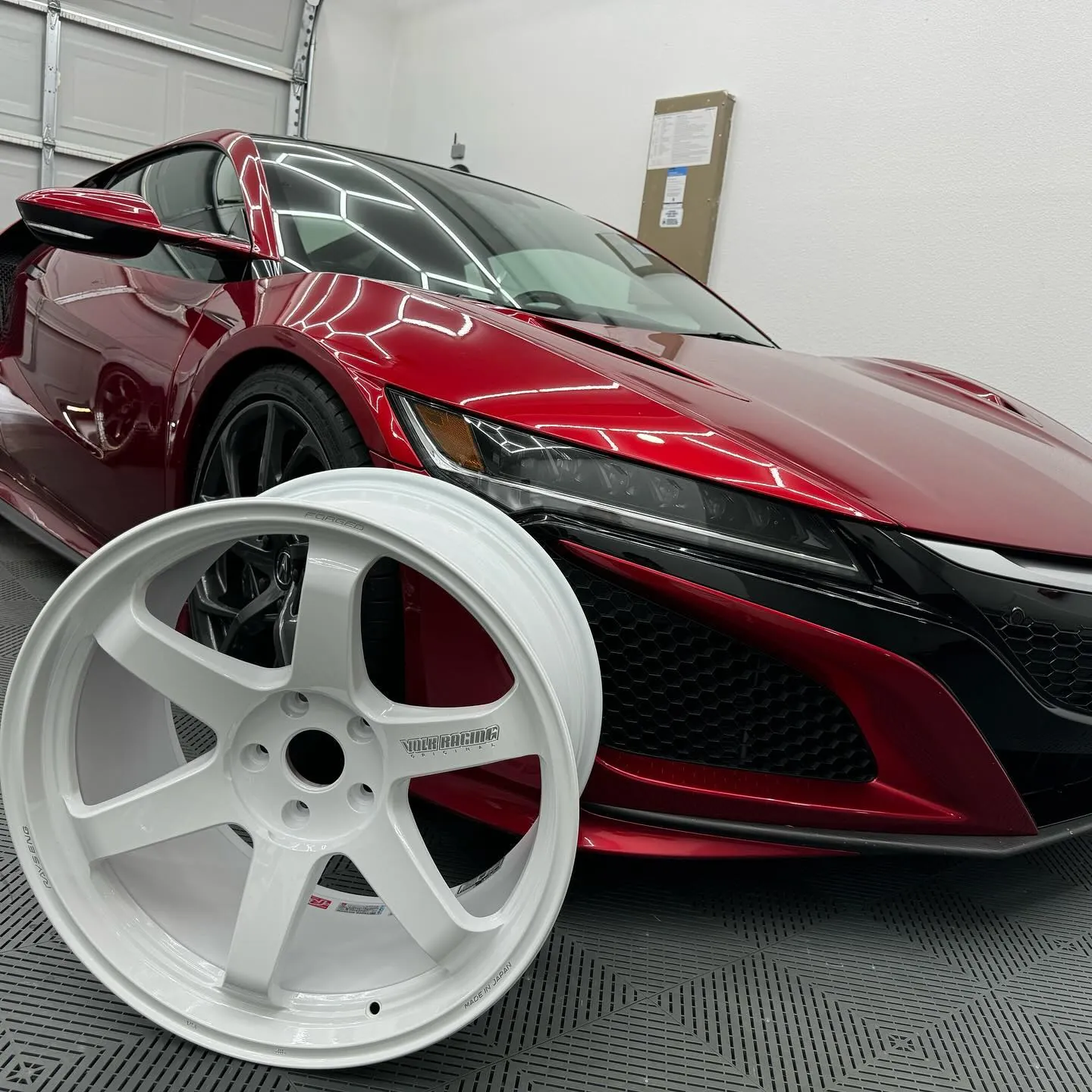
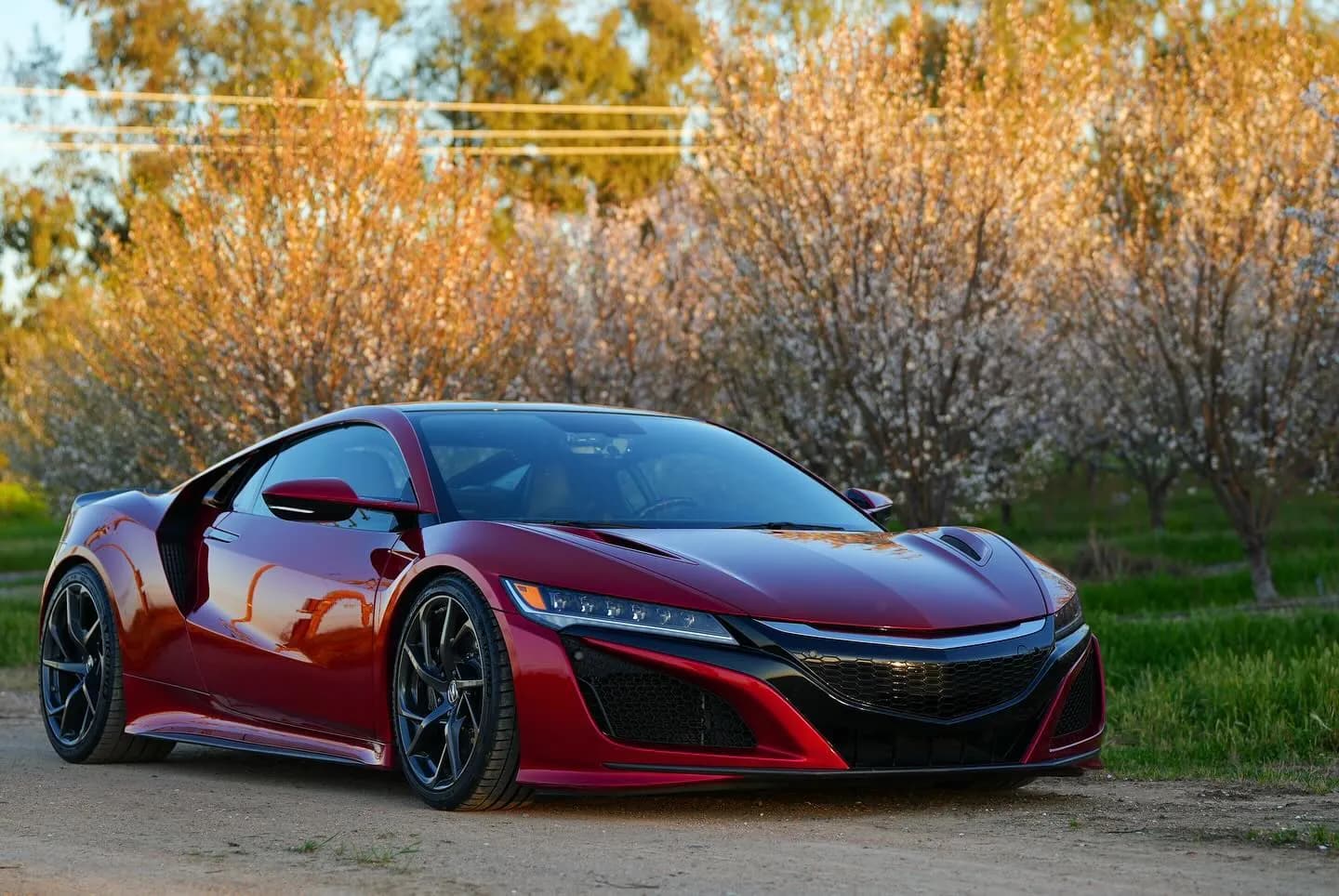
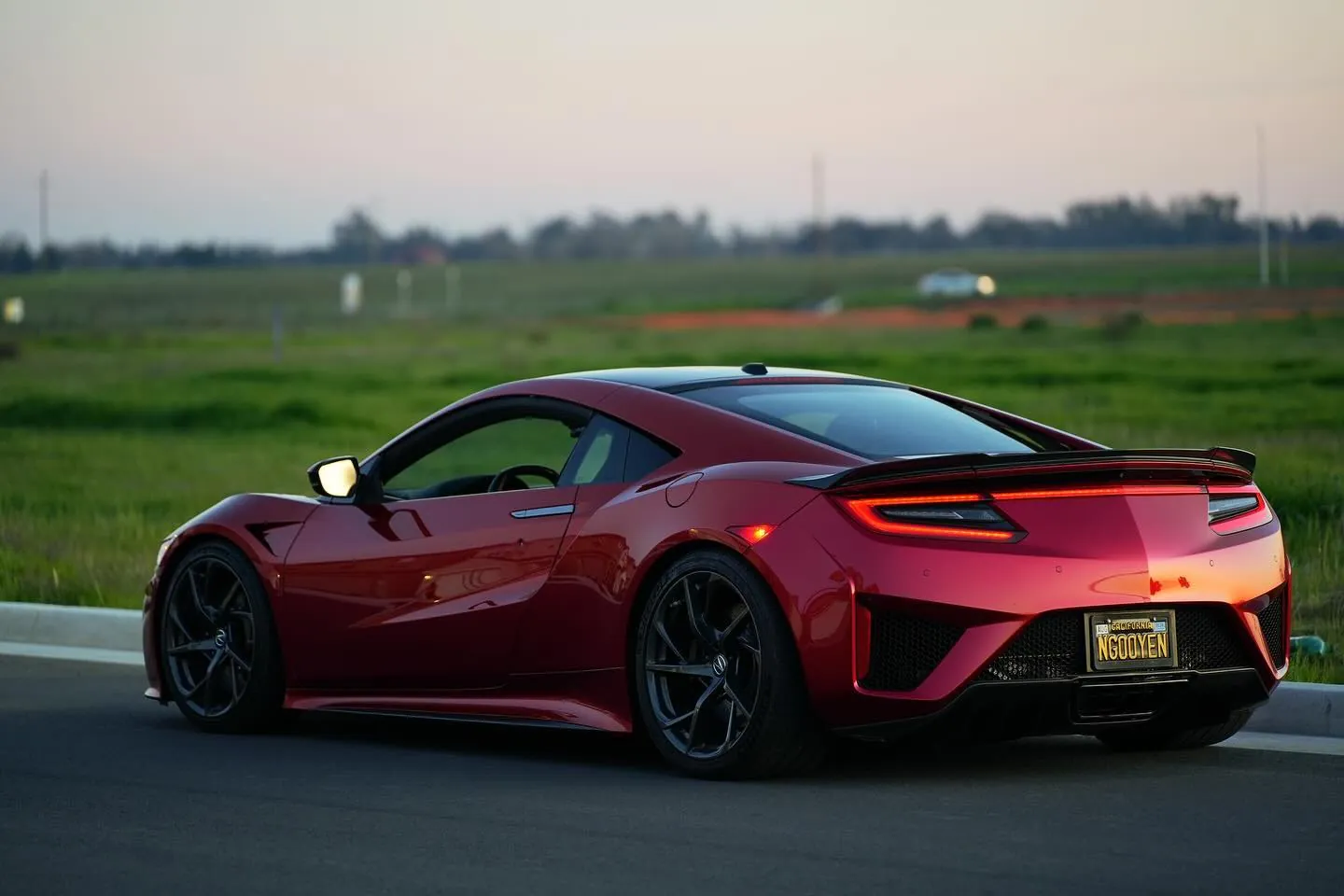
Photos from @ngooyen on Instagram. Follow for more.
Full transcript
Show the full transcript (125 lines) +
0:00what's up guys it's your boy John and we're back again with the video today we're going
0:04to be taking a look at Android Auto wired and wireless and how you can have it working on
0:10your Android phone which is super nice and this is all out of the box this is a head
0:15unit from Dasaita but if you have something called Z-Link you'll be able to have this
0:21feature it's already built into this one and most Android head units that are
0:25are higher end have it too. So Z-Link is what you need. Before we get into the
0:29setup what is Android Auto? Android Auto is using using your phone such as text
0:35messages, Spotify, any apps that are on your phone and have it on your head unit
0:41display which is super handy. So here I have like scanner radio, Spotify, VLC,
0:46ways but if you had other speways, but if you had other things like Pandora and mostly
0:52music apps then it will be over here also GPS apps, hence there's ways to and the user interface is
0:59very car friendly which is nice you got your maps and stuff like that and then you have your
1:06maps so when you put your directions into your phone it pops up right there when you get a text
1:14message or something like that it just pops it right there so everything is very
1:17hands-free and when you're driving it makes it very very very nice and you
1:23like, like weather,, W.I.F.I signal, LTE, and your battery life right there which
1:32is my battery. It's an exc
1:53a GPS system. Now comes the setup. So you have to make sure your phone is up to
2:00spec and meets the the minimum requirements. Most phones is nowadays if you
2:04have like a Samsung even like an S6 like an older phone it'll still
2:09work. You just have to have like a newer version of Android. I think it like
2:23it, fast cellular connections that way you, you can talk.
2:32It's pulling data from your phone and it's spitting to the head unit so you need data in order to display
2:35Spotify of course.
2:40On your Android head unit side, it's pretty easy, minimal requirements.
2:45On your head unit side, you need something that has Android Auto and Apple CarPlay built in.
2:52app right here is called zlink most head units if I can go back this is
2:57called Z link most Android Auto head units that are from Dasaita that have
3:02Android Apple CarPlay will use the link same with other brands this is
3:07a very popular and the kind of the go to so you make sure you have
3:12the link and you'd have to have the latest firmware so let
3:16me just disconnect this real quick so I disconnected on my phone you need to
3:23have the version 4.0.6 and that version while you have Android Auto Wireless now
3:31these icons if you guys don't know
3:33what it means this one is wireless Apple CarPlay this is wired CarPlay this is
3:38wired Android Auto and this is wireless Android Auto and if you don't have the
3:43You can go ahead about and then you should be able to check for updates right there and
3:49um, this mode right here it doesn't say it has a android on a wireless but as you
3:56witnessed here my phone was it connected and it worked without any issues so you
4:02need version 4.0.6 so I- I just turn off I'll turn on back my Wi-Fi and
4:08and my phone as you can now tell no wired or anything it. of
4:14Android, Android Auto has connected to your car but we're gonna delete everything so we can start fresh for you.
4:22the first thing you want to do is go to your bluetooth on your android head unit
4:29so there's bluetooth a2dp you want to go bluetooth you want to go to your settings right here
4:37put in your pin information so mine is going to be called the nsx my pin number is 1991
4:44um you want to hit the search icon right there after you hit the search icon
4:52So. So let me just delete this off my phone. So right now it's hooked up to my OnePlus phone.
4:58I'm going to delete it
5:00So it's basically a fresh install, which is great.
5:05So it's searching right now.
5:09And now I'm going to pair a new device on my phone.
5:13And it's also searching.
5:16so I'm looking for the name I put in the configuration which was speach NSX
5:22connect to it and now it's connected to it sometimes it will ask for a pin
5:28number but that time it didn't so after you do that you're pretty much good with
5:34the head unit after we finish the bluetooth setup so now my car and my
5:41phone are talking car head unit settings this is the settings
5:46I know it's
6:16All right, so after you download Android Auto, you want to click on Android Auto app in your
6:22drawer.
6:23This is going spew is going to pop up, how the layout is going to look like you want
6:27to hit that hamburger icon and then go to settings.
6:31Now it's going to pop up Android Auto settings before we mess with these settings.
6:36I want to go to the very bottom and hit this version thing that's popping up up right
6:42now.
6:46times. After you spammed it, like just keep
6:53it. It said, do you want to have development settings on you do. So you hit OK.
6:57And get these three little dots on the top right
7:02Go to developer settings and
7:05Make sure I know a lot of people have this issue that's what just mentioning right now
7:09You wanna have add wireless projection to settings right there
7:15And you can do all these other settings are here
7:17Here where you can just force, force it to night mode if you like night mode save audio and stuff like that
7:22But for the case of this
7:24you have to make add wireless projections to settings. That way it can well
7:31project or a little silly to your Android head unit. After you do that this is
7:37where you're gonna have to use that USB cable. So I have a USB cable ready right
7:42here. Let's turn the car on. Alright so when you first plug in your phone we're
7:49gonna be greedy with this screen it says what will Android Auto do contact your
7:56contacts parrot sync it allow all the stuff you want to hit continue then all
8:02the more permissions I allow all of it but read through it and after you hit
8:12continue you're gonna have it project on, here let me just get rid of that
8:17Exit. a.
8:18My address and stuff like that, so you have Android Auto Wired.
8:24Which is really simple.
8:25You just plug it in.
8:27It works.
8:28You have it right here.
8:29You got your Spotify.
8:32So let's not play any songs or anything.
8:36So what about wireless Android Auto?
8:39So with wireless, it's a little bit trickier, so I'm going to unplug it, it instantly
8:44, this connects to it. But you want to go to that Android Auto app we looked about, we installed earlier. You want to go to that hamburger menu settings. And this is wireless Android Auto is available. Now here's the kicker right here. Make sure you're not on battery saver
9:14the bluetooth is on, wireless android Android Auto is on
9:17you can turn this on
9:21but those settings areies are on
9:24the best thing you can do is
9:58your phone.
10:07Sometimes you don't need to but, but after you restart your
10:09your phone, it should work and it is sometimes it
10:15doesn't it's a little bit buggy. The main take the
10:18The main takeaway is you need to have Bluetooth on which is connected and then you need to
10:48the Android Auto app
11:18I'll make a video on that on how to you guys can
11:22update that so that's gonna be very cool and you'll be able to have this even if you
11:48You're charging your phone
11:50But there's something to be said if your phones in your pocket and you walk into your car
11:55And you already have Android Auto as In terms of responsiveness
12:01It's a little it's it's pretty good. I mean, it's it
12:177 out of 10 wired would be the best case scenario
12:22that would say that would be like nine out of 10.
12:25So this is in very doable and it's wireless
12:28so it's super convenient.
12:31Anyways, thank you guys for watching
12:33my Android auto wireless setup for Android head unit.
12:39Now if you had Apple
12:47phone.
12:48You're literally hooked up to the Bluetooth and
12:51you're done.
12:52Now, the
12:53Android Boyz and unfortunately you have to go through your settings a little bit.
12:56Sometimes you don't which is weird but if you are having issues make sure
13:01you enable that developer settings and have wireless projection on.
13:07Thank.
13:08It thank you guys for
Machine-transcribed from the full-length video and lightly cleaned (product names fixed). Watch the video for exact wording.
Next step


